
Creating and Sending Requests
Start by clicking the "Create Request" button, either on the left-side menu bar, or on the right side below "Completion Times."
Choose your Template
Enter in the user/ID Owner's email address under the "Send Information Request to" field.

OPTIONAL: Edit the summary (Subject line) and Request Message (Email body) as necessary. If you want to edit the default Summary and Information Request Message indefinitely, please reach out to your Customer Success Manager to permanently customize this field.

OPTIONAL: Input notes that might be helpful for you and/or your team. This is an internal field, so end-users will not be able to view its contents.
Sending Requests
Click the "Send Request" button to send your request!

- Upload CSV Feature: This feature allows you to send a large number of requests at the same time. Please review our Upload CSV Article for further instructions.
Managing Requests
After you send a request, you will be directed back to your dashboard view. From there, you'll see one of three different statuses for each of your requests...
- Pending: The request is not yet complete. Either the user has uploaded their information to Evident and the request is processing, or the user has not uploaded any information yet.
- Shared: The request is complete and you can now view the results.
- Time-out: The request has expired because the end-user did not take action on the request email for 30+ days.
For a detailed summary of any request, including the results, simply click on the request from the Dashboard View.
On the right, you’ll find an overview of the request, including highlights like the IDO email address, the date the request was sent, the request summary, and the description.
To the left, you'll see the list of attributes you've requested from the IDO and the results of each attribute.
A notes section will display at the bottom of the page for internal purposes.
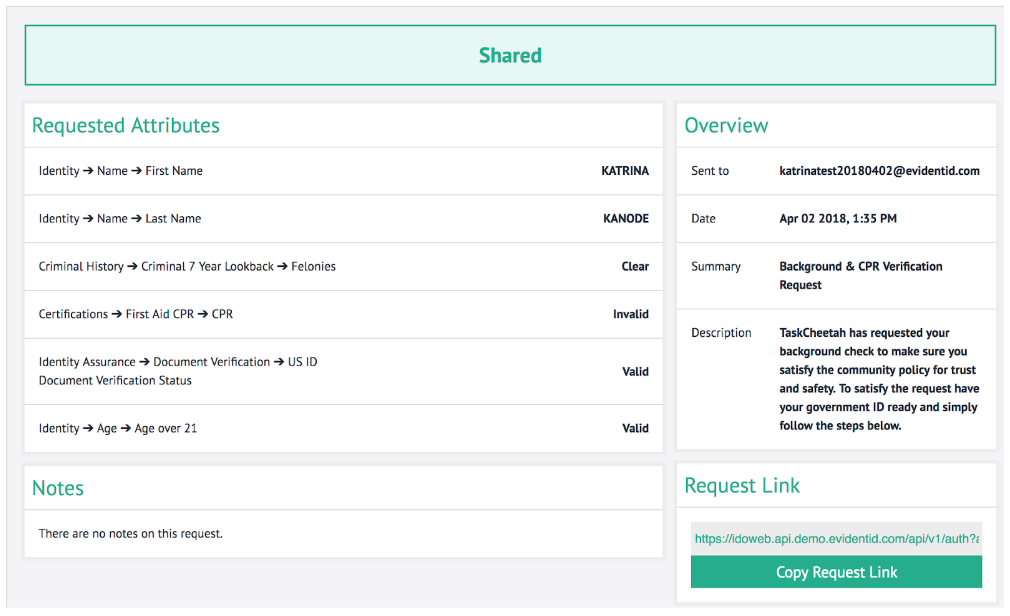
In this example, Katrina's Criminal Background History is clear, and her ID is valid. She is also over the age of 21, but does NOT have a valid CPR certification.
Scroll through each request by clicking the "Previous" and "Next" button at the top of each Request Details page. To navigate back to the Dashboard View, click "Dashboard" on the menu bar to the left.