
How to Use the Upload CSV Feature
Use Evident's Upload CSV feature to send a large number of requests at the same time. This will cut down on the amount of time you're spending on manually sending one request at a time.
Create a CSV file from Excel or Google Sheets. In Column A, list the email addresses to which you want to send requests. In Column B, list the name of the template you want to use from your Evident Portal. The upload is case-sensitive, so be sure that the template name matches the exact name of the template in your portal.

Finding the Appropriate Template Name
To determine the template name to include on your CSV, click on "Create Request" and then click on the drop down at the top of the page that says "My Templates". Look for the template or templates that you would like to apply to the individuals you will be uploading. Make sure to write the exact name as shown in the drop down in column B.
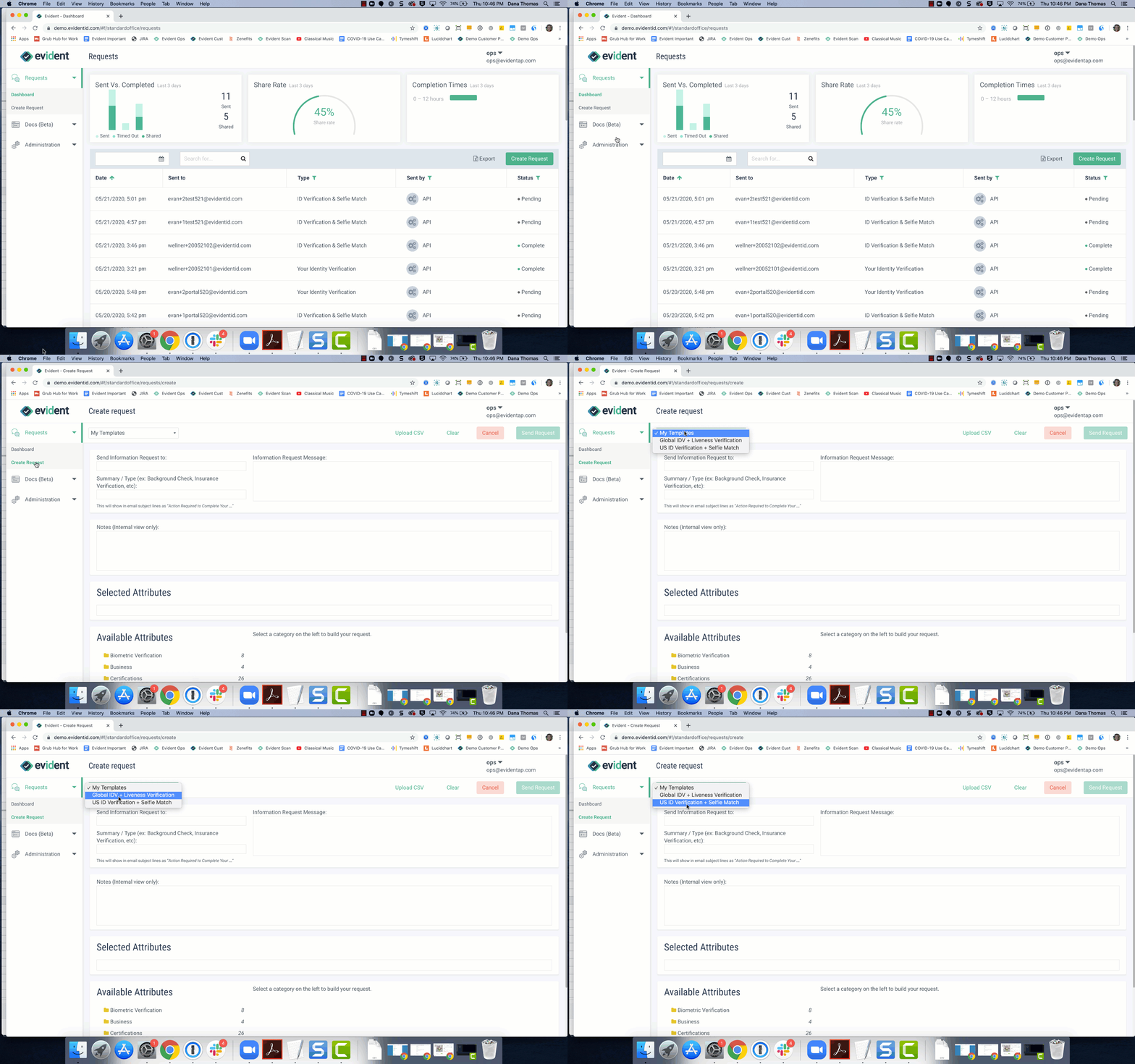
Uploading the CSV
To upload the CSV, navigate to Create Request > Upload CSV > Choose the CSV file from your computer.
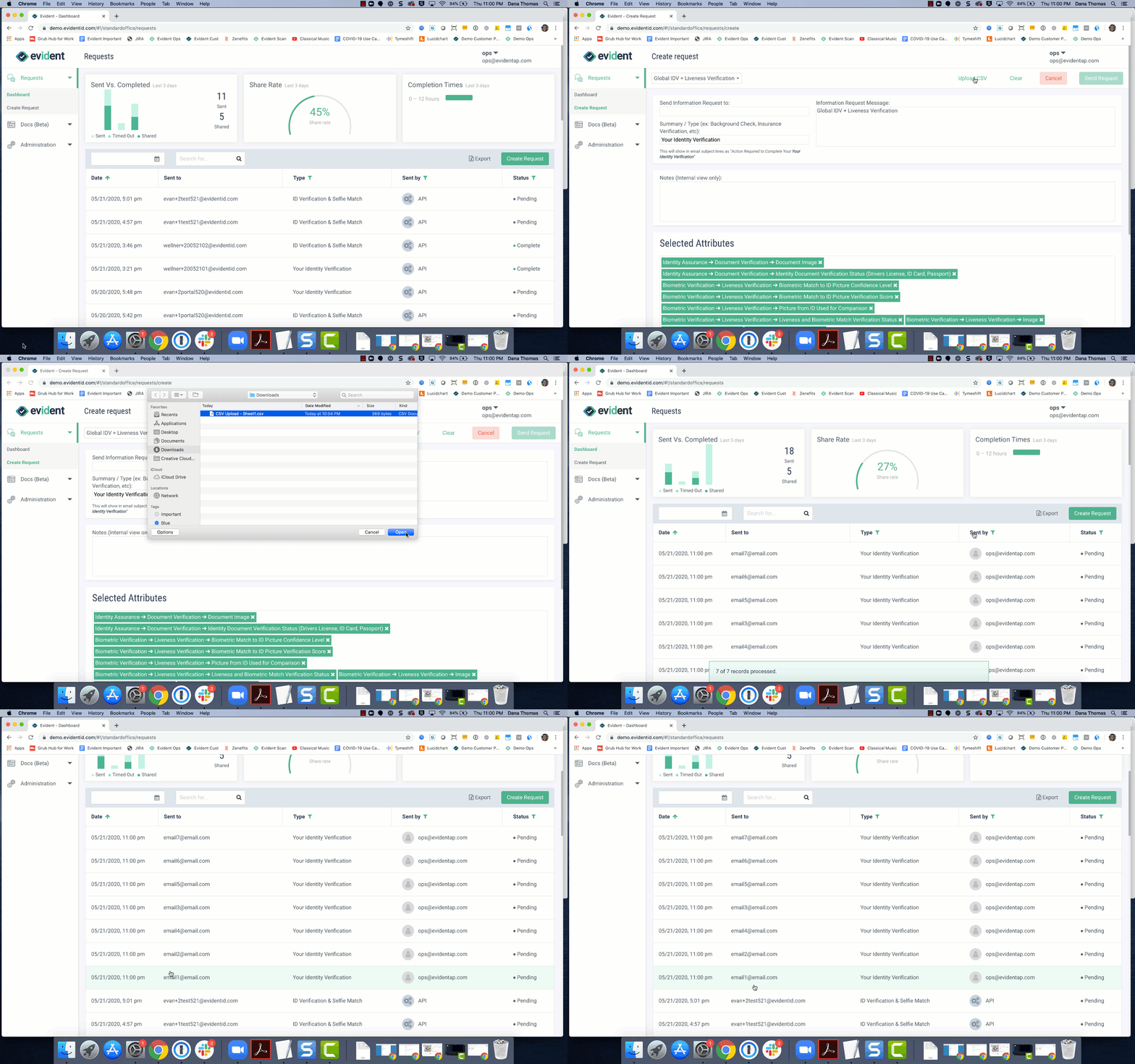
Once the CSV is uploaded, you will see the emails from the CSV listed in the dashboard and the requests will automatically be sent to the recipients.
Handling Error Messages
In the event that the templates names are spelled incorrectly or an email address is misspelled and is not a real email address, you'll receive an error message that looks like this:

Click the link to download the new "FixMe" file so you can check for spelling errors and incorrect email addresses. After making edits, you can upload the file again.
Email support@evidentid.com if you're having trouble uploading your CSV file.