When is a "Featured Professional" Background Check used?
There are some scenarios where you might want to add an individual as "featured" on your Local Services Ads profile. In order to accomplish this, a business owner who has a Local Services Ads account can run an individual background check on a partner or someone else so that this person can be displayed individually as "Google Guaranteed".
(As the business owner, you always have the option to have yourself featured once your Local Services Ads onboarding is complete. You do not need to run an additional background check on yourself to be featured if you are the primary business owner associated with the Local Services Ads account.)
What is a Featured Professional Background Check?
A featured professional background check is a specific type of background check where no information is required for a civil business check check and it does not include a business owner background check. During this process, the background check is just for the employee. Any additional individuals that you want featured will also need to go through the same process.
Considerations with a Featured Professional Background Check
This background check process does not have a roster creation page and you as a business owner will never see the new employee background check listed on your original roster. Since there is no roster for this check, business owners will not be able to send reminder emails to their new employees. Instead, the employee is responsible for completing their own background check or the business owner may followup outside of their Local Services Ads Dashboard.
What is the process?
Step 1: You as the business owner will add a new professional using the Google interface for featured employees from the "Profile and Budget" section of your Local Services Ads account.
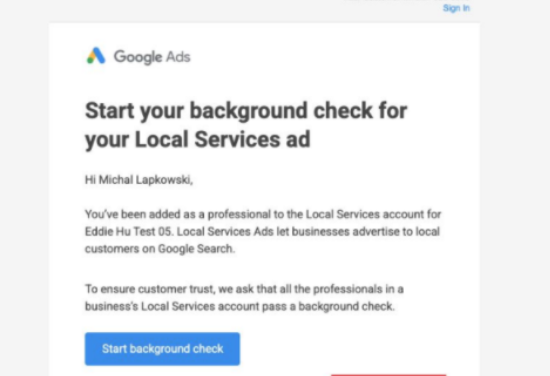
Step 2: The employee(s) will receive an email right away with a button that will allow them to fill out their own verifications. The email will specify the time window available for the background check to complete.
Step 3: Once the employee clicks on the submission link, they will be redirected to the following page where they will sign in using their email address associated with the background check and using their Google account:

Step 4: After signing in, employees will be required to submit all the following information (just like all other background checks).

Once all submissions are received, Evident begins the work.
As Evident processes the background check, employees may receive one or more requests for additional information. If they receive the request for additional information, they should respond right away. For any responses that require filling in information, they should provide as much detail as possible to prevent additional submissions from becoming required.
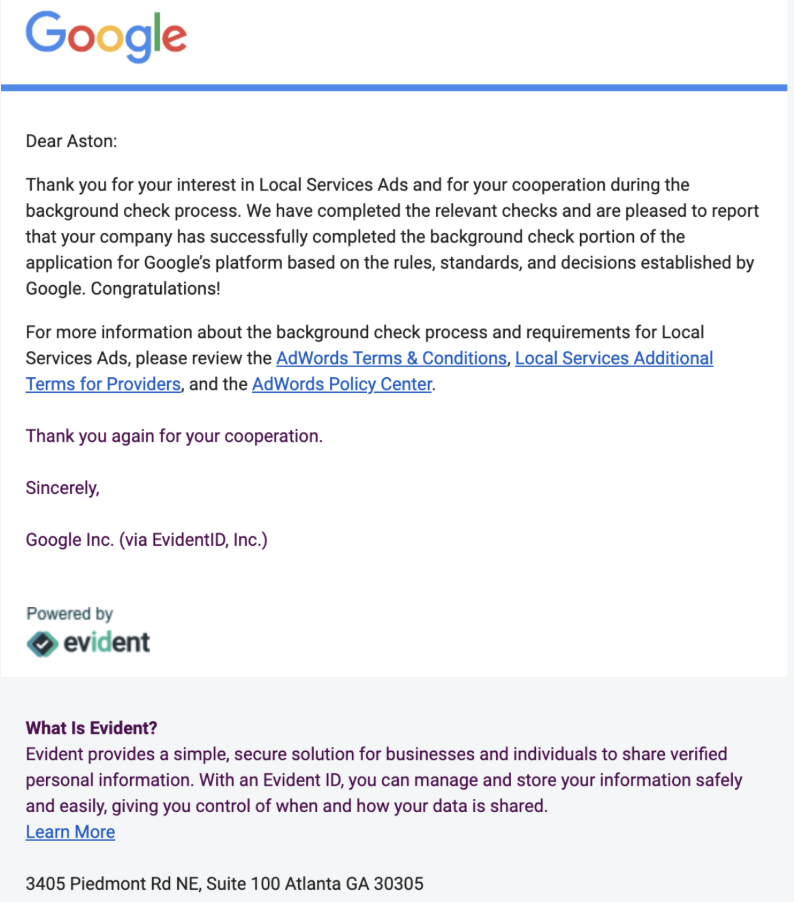
Step 5: Once the processing is done, an email be sent that is similar to the below to advise on the outcome of the background check.