
Note: If you have never created a policy before, first read this article. If you do not know what a policy is, read this article.
This article outlines the fourth step of Policy Configuration, creating an offense group and defining the criterion of this offense group that will trigger a policy violation.
How does policy configuration work?
Configuring your policy consists of six (6) distinct steps. Five (5) of these steps are required and the final step is optional. When you are creating a policy for the first time, you will need to complete the steps in the consecutive order they are listed below.
- Step 1: Name the policy
- Step 2: Configure the elements of a background check
- Step 3: Select the background check product associated with this policy.*
- Step 4: Create the first offense group of the policy & define the criteria that will result in a policy violation (that's the step this article is about).
- Step 5: Identify which crimes will belong to this offense group.
- Step 6: (Optional) Create additional offense groups to allow further configuration of the policy.
*Once you have created the policy, you may go back and edit the policy in whatever order you wish. However, the background check product cannot be changed after creation of the policy. Therefore, if you want to run a different background check type after the policy has already been created, you will need to configure a new policy.
If you are creating a policy for the first time, once you leave the background check selection screen, you will immediately taken to a screen that will allow you to create your first offense group.

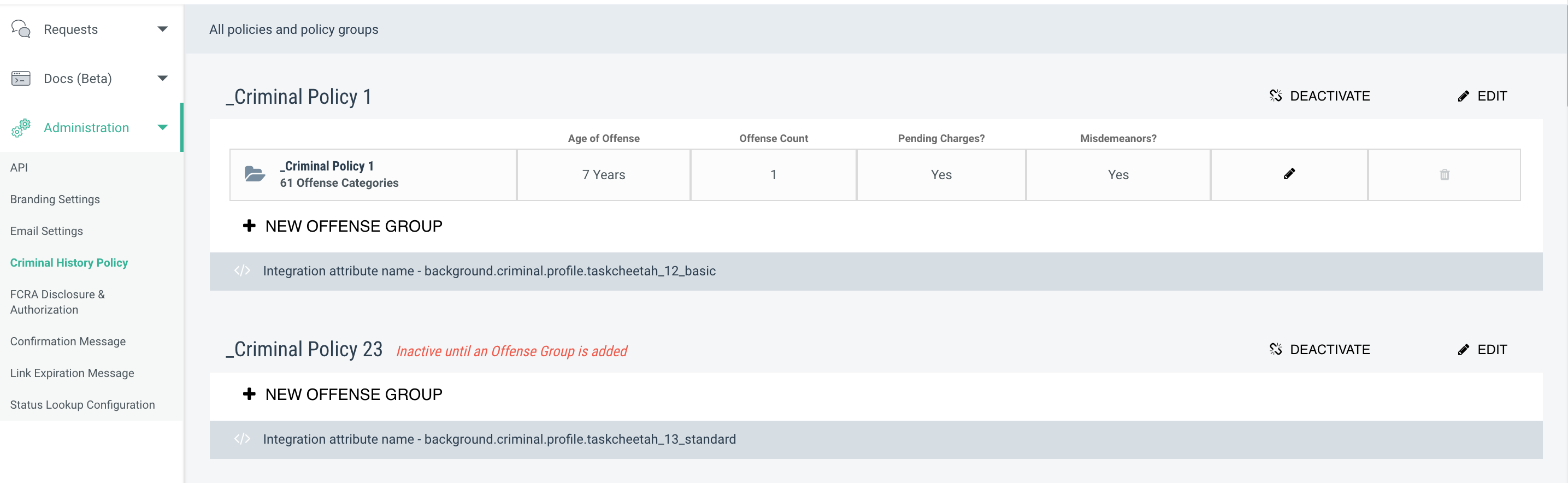
You can also access this page from the Criminal History History Policy section of the Administration tab.
The offense group page allows you to specify the parameters associated with the criminal offense categories (selected on the following screen), and outlined in Step 5 of the Policy Configuration process. These parameters determine what kinds of crimes trigger a result of "Clear" or "Policy Violations Found" when accessing an applicant's criminal history. Each policy must have 1 or more offense groups. Most criminal policies can be configured in a single offense group. For example:o criminal offenses in the past 7 years. Policies that have more complexity may require more than one offense group.
Name the Offense Group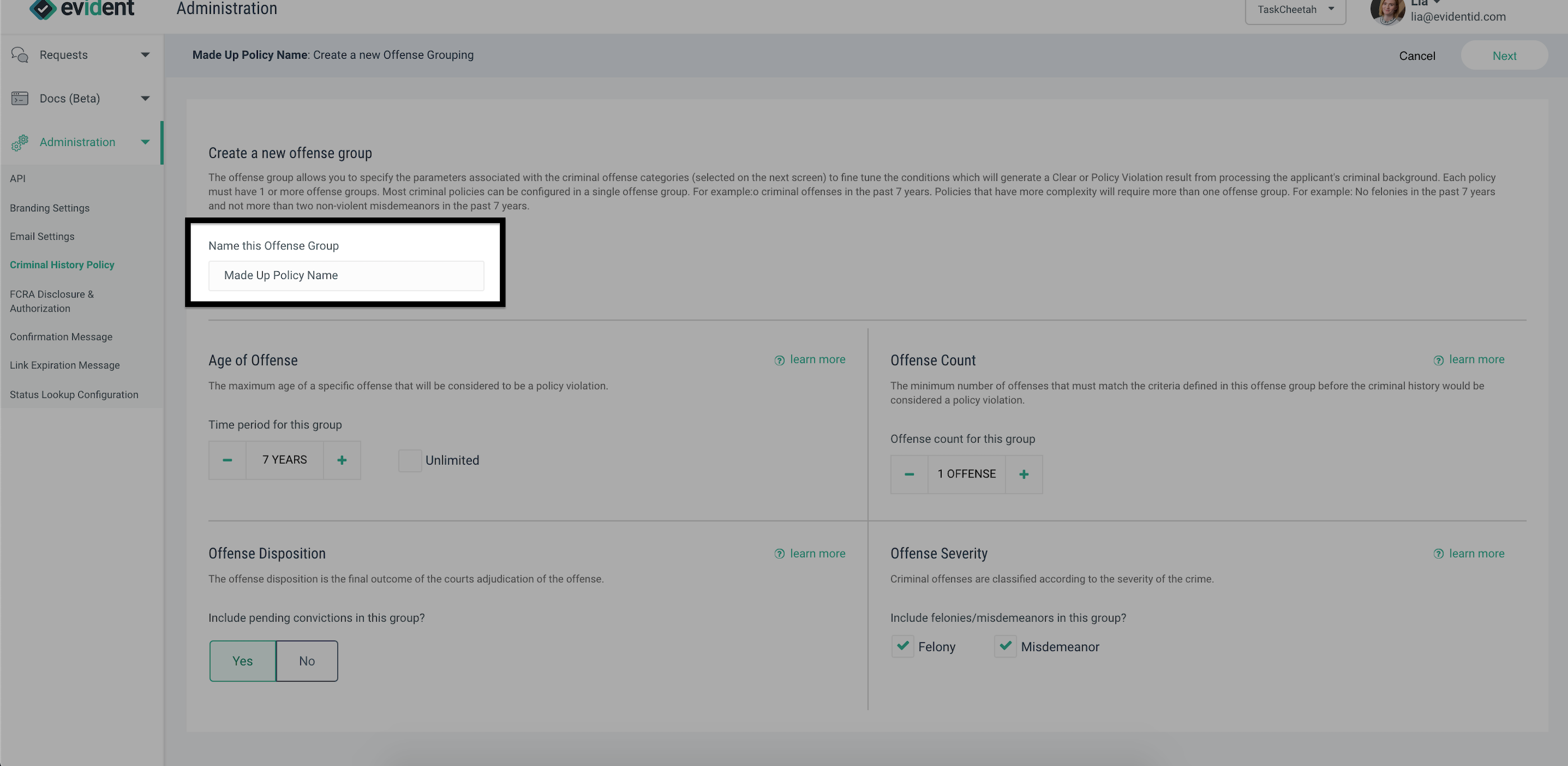
If you will have more than one offense group, this name can be fairly generic, such as "Offense Group 1." If you will have multiple offense groups, best practice in naming convention is to pick a name that indicates the defining criterion of the offense group, like "Violent Felonies, 5 YR Lookback."
This is editable later, so there's no need to have a perfect name. Once you've gotten something that is good enough, move onto to the next option.
Age of Offense

The "Age of Offense" option specifies how old an individual criminal offense can be and still flag as a policy violation. If the incident date of the crime falls outside of the window of time specified by the Age of Offense, the background check will come back as "Clear." If the offense satisfies all other criterion and the incident date is inside of the window of time specified, then the background check will return "Policy Violations Found."
The availability of different dates varies according to court record keeping systems, meaning that sometimes different dates are provided by different sources.
Usually, seven (7) years is the recommended maximum age. Selecting “Unlimited” will remove the maximum age, and will consider the individual’s entire history in the evaluation. In most circumstances, Evident can guarantee the provision of background check data going up to seven (7) years, and often we are able to get beyond seven (7) years. However, anything beyond 7 is dependent on whether or not the county has the data and if it is reportable, meaning they save and store the data, and it is accessible in some manner. It is always "best effort" on Evident’s part to go get it and not guaranteed when beyond seven (7) years.
Updating the "Age of Offense" period to "Unlimited" will not change how long we look back in the applicant's address history for background checks that do a residential history check to generate counties. That remains 7 years regardless of the Age of Offense. However, the crimes that are returned within that address history can at times go beyond the 7 age.
Important Notes About the Age of Offense
If you extend the date beyond seven (7) years, you may be out of compliance with local laws addressing how background check information can be used. There are some state level FCRA laws that limit decision making off of any information beyond 7 years so you should always consult with your legal counsel to ensure compliance with federal and state regulations for how background check information can be used.
When using the 1 Year lookback product in your policy, it will perform a Pro background search of the candidate in the jurisdictions where they have lived in, within the past year. See here for a use case of why you would use 1 Year lookback. If crimes are found within the last year, then the background check will present those crimes. If no crimes are found within the past year, it will conduct a basic background search up to the offense age specified in the offense group.
Offense Count

The "Offense Count" of a specific offense group specifies the minimum number of offenses that will trigger a policy violation. For all offense groups, the minimum number is 1.
Offense Disposition

The offense disposition is the final outcome of the courts adjudication of the offense. This setting allows you to select only if pending offenses (not yet adjudicated by the court) will count toward policy violations in addition to guilty dispositions. Criminal offenses that are adjudicated by the court as not guilty are not available to be considered in a criminal policy evaluation.
Offense Severity

Criminal offenses are classified according to the severity of the crime. The most serious crimes are known as felonies, less serious crimes are known as misdemeanors. This configuration option allows selecting which of these crime classification is included in evaluation of the policy. The most common setting is to select both felony and misdemeanor to evaluate the crimes. More complex policies may require multiple offense groups to take advantage of this setting. For example one offense group would specify no felonies in the past 7 years and the second offense group would specify no more than two non-violent misdemeanors in the past 7 years. The offense group requires at least one of the two options below to be selected.
Now that you've completed this step, you'll need to finish the final required step, which is Step 5: Identify which crimes will belong to this offense group. Step 6, which is to create additional offense groups, is optional and is also included in the next article.